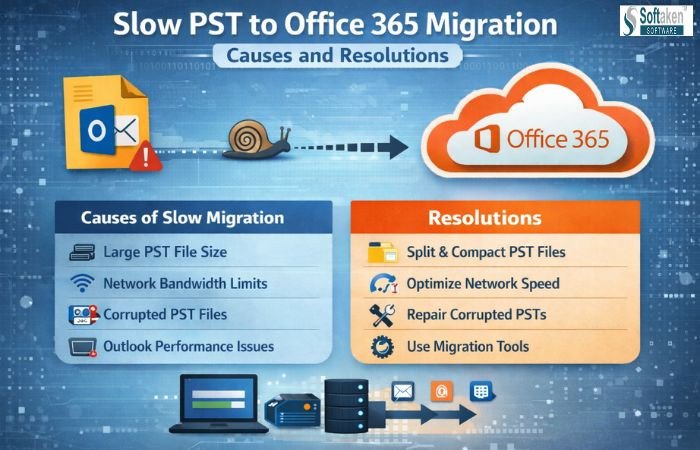
Moving email is something that both businesses and individuals do a lot. A lot of individuals switch their data from PST files to Office 365 so they can access it more easily and have more options. People can work from anywhere using Office 365, and it keeps email data safe online. The relocation process, on the other hand, isn't always easy. Slow PST to Office 365 Migration is one of the most common concerns consumers have.
A delayed migration can waste time and get in the way of work. It can also be annoying when emails don't show up on time. The first step to fixing this is to figure out why it happens. This blog talks about the primary reasons why moving PST to Office 365 takes a long time and gives easy solutions to the problem.
PST files keep Outlook emails, contacts, and calendar entries on a computer. Office 365 keeps the same information in the cloud. Moving this data from PST data to Office 365 mailboxes is what migration entails.
The process seems easy, but a lot of things might slow it down. If these things are not taken into account, the migration will be delayed or perhaps fail.
2. Bad Internet Connection
3. Outlook Version 1
4. Moving too many files at once
5. Too many applications are running
Moving things by hand is free, but it takes a long time. It works well with PST data that is small. Carefully follow these directions.
Don't close Outlook while the process is going on. Wait till the migration is done.
Drawbacks of the Manual Method
Moving things by hand takes a long time. It needs the user's attention at all times. When you try to move large PST files, they typically don't work. Some emails might not be sent. There is no clear view of development. It gets hard to move more than one PST file.
A lot of people hunt for a speedier and safer solution because of these problems.
The Softaken PST to Office 365 Importer is a reliable solution designed to help users transfer Outlook PST files into Office 365 mailboxes smoothly. It supports email contacts, calendars and folders without altering the original structure. The tool handles large PST files and allows bulk migration in one process. It offers a simple and user-friendly interface that requires no technical skills. Users can track PST to Office 365 Migration progress easily and avoid data loss during transfer. The importer reduces manual effort, saves time and improves overall migration speed. It is suitable for both individual users and businesses needing secure and efficient email migration.
Key Features
These features make moving easier and quicker.
How the Tool Performs Migration
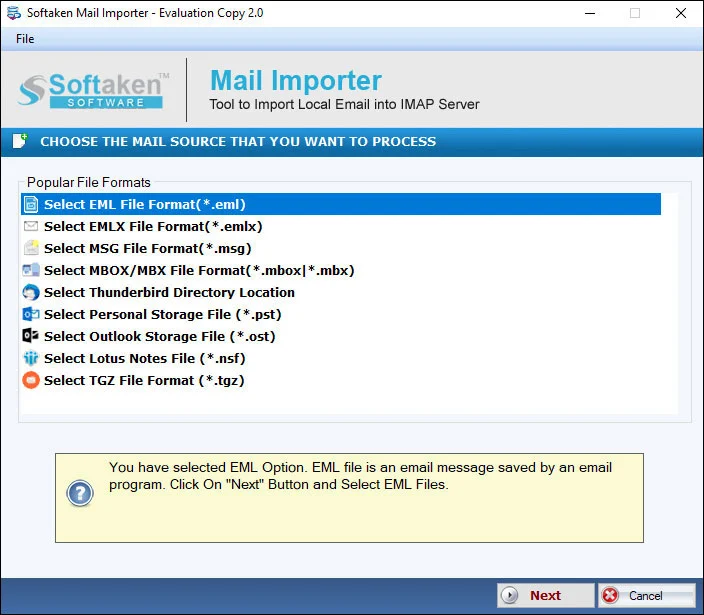
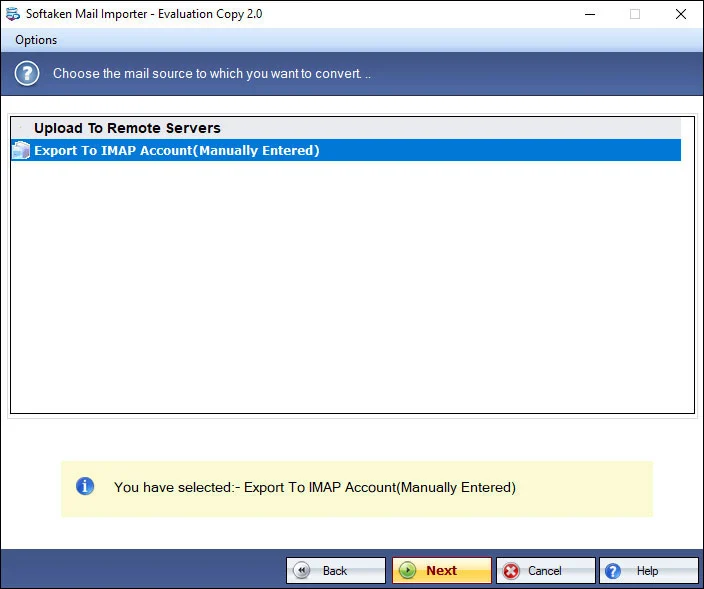
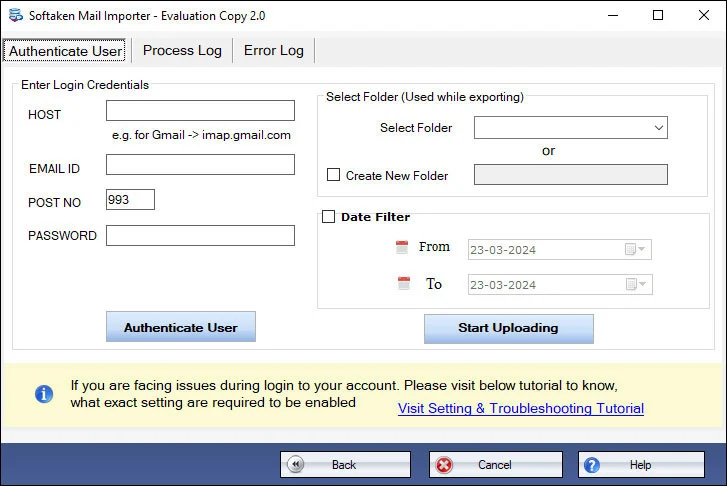
Why an Automated Tool Is a Better Choice
Automation makes things easier and faster. It cuts down on mistakes that happen when you do things by hand. It makes the process of moving faster. It works for both people and corporations. Automated tools also give you more control and dependability.
The Importer application is a good solution for people who have trouble migrating over and over again.
A slow PST to Office 365 transfer is a regular problem. It frequently happens because of big files, slow connections, or constraints on the manual technique. Making files smaller and speeding up the internet are two easy things that can assist.
Manual migration only works for small needs. It gets hard with a lot of data. An automated tool makes things go more smoothly and quickly.
The application makes it easy and safe for people to move their data. Choosing the correct approach will make your transfer to Office 365 stress-free and keep your email data accessible.
Download Attachment