Nowadays, PDF files are used everywhere, from office documents & bank statements to e-books & personal files. Sometimes, these PDFs are password-protected, making it difficult to open, print, or edit them. But don't worry, even if you don't have Adobe Acrobat Pro, there's a solution.
In this blog, we'll show you how to remove PDF passwords without Adobe Acrobat, using both manual methods & third-party PDF password remover tools.
The PDF file isn't printing or copying
You have to enter the password repeatedly
You don't remember the password for an old document
You need to share the PDF with your office or client
You need to edit a PDF that is locked for viewing only
Note: Users must have the PDF password in order to use this approach.
Step-by-step manual method:
The new PDF file created after this process typically does not have a password.
Does not work on all PDFs
Editing and copying permissions are not completely removed
May fail with large or multi-layered security PDFs
PDF password remover software is a good solution if you want a more simple and safe technique or if the manual way doesn't work.
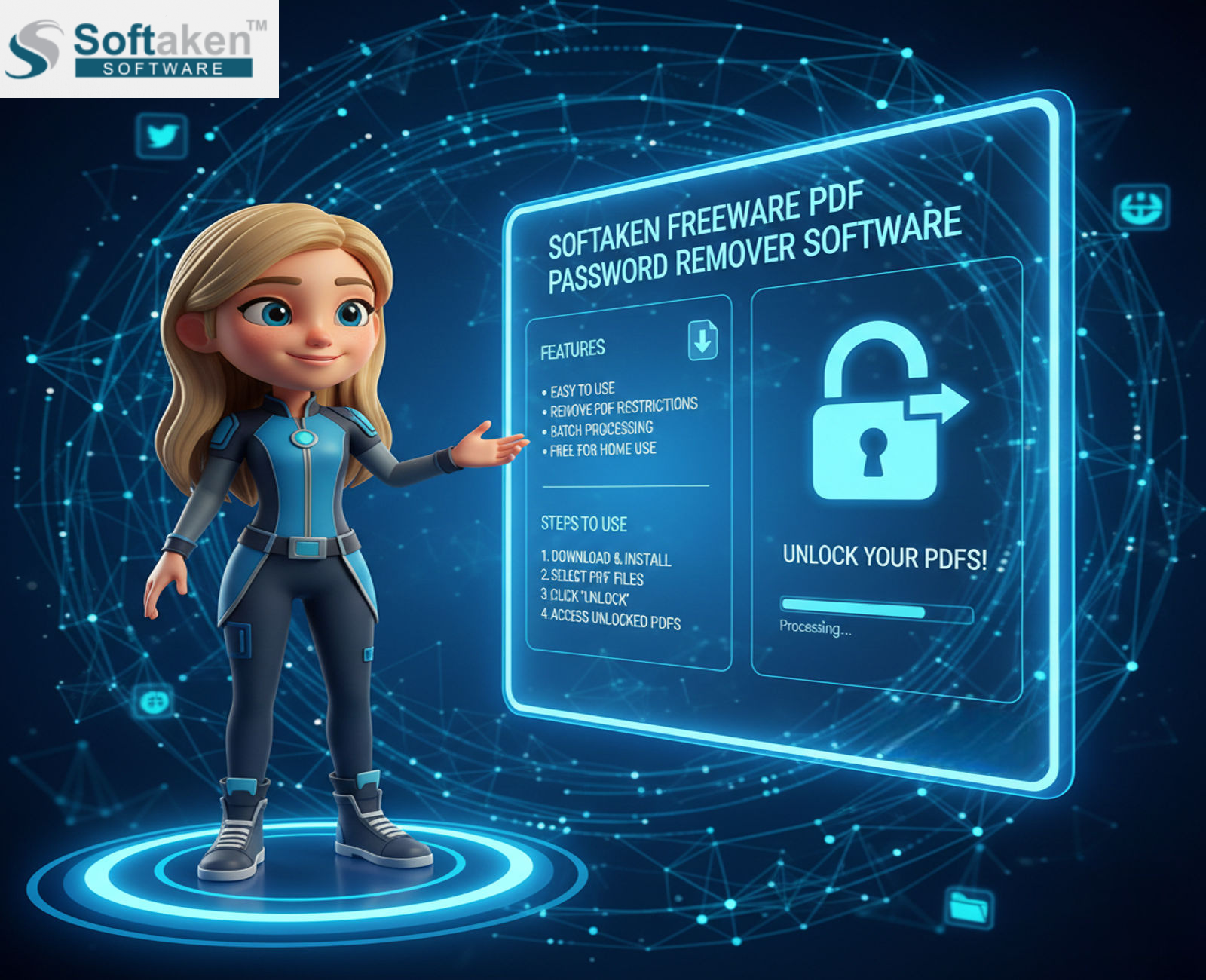
Softaken Freeware PDF Password Remover is a useful software that allows users to easily access password-protected PDF files by removing the security restrictions. This tool helps remove restrictions related to copying, printing, and editing PDF files. A key feature of this software is that it works without Adobe Acrobat and supports all the latest Windows versions.
Key Features of Freeware PDF Password Remover Software:
What is the process of the Freeware PDF Password Remover Software?
This software is very easy to use. You can easily remove passwords from PDFs by following the steps below:


Your PDF file will be password-free in no time.
This software is especially useful for users who want to remove passwords from PDFs without using Adobe Acrobat.
Conclusion
If you ever need to remove a PDF password without Adobe Acrobat, the manual method can be a basic option. However, there's no guarantee that it will work every time.
On the other hand, a third-party PDF password remover tool is a safe, easy, & reliable solution that allows you to remove passwords from PDFs without any technical knowledge.
If you work with PDF files regularly, this tool will prove to be quite useful.

