
A lot of people store critical emails in MSG files and use Microsoft Outlook for their correspondence. Because MSG files hold the entire email, including text, attachments, and graphics, they are fantastic. However, the issue is that you need Outlook in order to open MSG files. It is preferable to convert them to HTML format if you wish to see them in a browser, share them with others, or store them for future use. HTML files preserve the email formatting and are simple to access from any location.
There are several reasons why you might want to convert your MSG files to HTML
1. You can open HTML files anywhere without Outlook
2. HTML files are much easier to share with others
3. HTML files are better for long-term storage
4. HTML format is perfect if you want to publish emails online.
I'll go over the benefits of converting MSG files to HTML in this post, as well as how to accomplish it manually and how a straightforward program can speed up and simplify the process.
If you only have one or two emails to convert, Outlook built-in "Save As" feature is sufficient. Here's how:
Step 1: Open Microsoft Outlook
Step 2: Open the MSG file
Step 3: Go to the File menu
Step 4: Select "Save As"
Step 5: Choose the HTML format
Step 6: Choose a destination and save
For users with many MSG files, manually converting each one can be slow and tedious. This is where a specialized tool like DataVare MSG to HTML Converter comes in handy. It allows you to convert multiple MSG files at once, preserving the original email layout, images and links. The process is simple and doesn't require advanced technical knowledge.
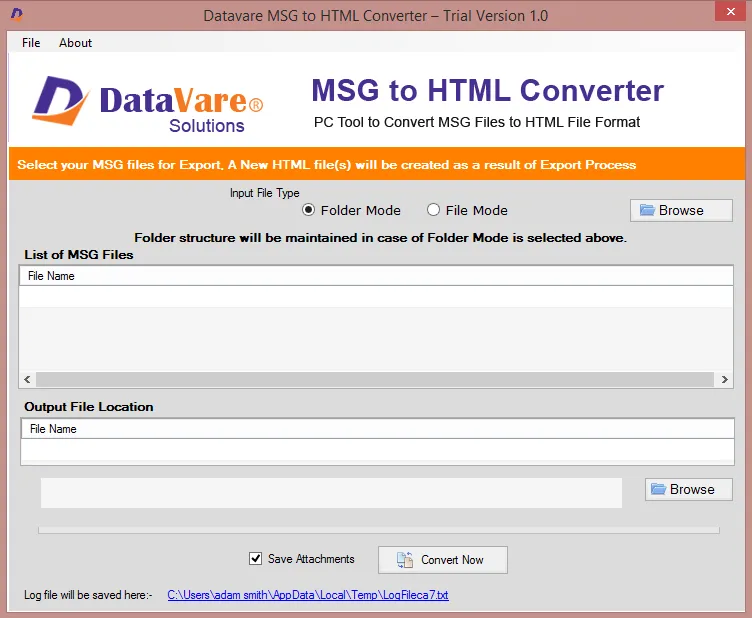
Using this type of tool can be extremely beneficial to both individuals and businesses that deal with high volumes of email. By using this tool, an individual or business will be able to reduce the amount of time and effort they spend on email conversions, avoid errors in the conversion process and maintain proper formatting of all of their email messages.
| Feature | Manual Method (Outlook) | Using a Converter Tool |
| Number of files | One at a time | Multiple files at once |
| Ease of use | Simple for a few emails | Very easy, even for large volumes |
| Formatting accuracy | Can lose images or layout | Preserves original formatting |
| Speed | Slow for many files | Fast |
| Requirement | Outlook installed | No need for Outlook |
If you only have a few MSG files, the manual method is fine. But for large collections, a converter tool is much faster and more reliable.
When you require simple access, sharing and archiving, converting MSG files to HTML is helpful. Outlook allows you to accomplish this manually, but it might be sluggish when processing a large number of files. A conversion tool expedites the process and maintains the security and organization of your email content.
With the correct method, you can easily use your HTML files on any device and convert your MSG files in a matter of minutes.
1. Is it possible to convert MSG files without Outlook?
When using a converter program, it definitely is. A manual method does necessitate the use of Outlook.
2. Should I use an HTML file from a converter to keep the formatting of my email?
Yes, if you are utilizing a reputable converter, it should maintain your formatting.
3. Can I convert multiple MSG files at one time?
Yes. A converter tool allows batch conversion.
4. Is HTML a safe format for storing emails?
Yes. HTML is widely supported, easy to view and simple to archive.
5. Does conversion affect attachments?
Email content is saved in HTML. Attachments can be saved separately depending on the tool.

