Microsoft Outlook is a very popular application for managing our email, calendars, contacts, and attachments. However, over time, PST (Personal Storage Table) files saved in Outlook can become quite large. If the PST file becomes too large, Outlook may slow down, lag, hang, and sometimes even fail to open. That is why it is important to compress (compact) the PST file regularly.
In this blog, we'll cover manual methods for compressing oversized PST files on Windows 10/11, as well as a third-party PST compression tool. This complete guide is easy to follow and understandable for any beginner.
Why does a PST file become oversized?
These factors often cause a PST to become oversized:
When a PST file becomes larger, such as 10GB–50GB, Outlook performance begins to deteriorate.
Benefits of Compressing a PST File
Compacting a PST file can provide you with the following benefits:
Microsoft Outlook comes with a built-in Compact Now feature, allowing you to shrink a PST file without any tools.
Below is how to compress a PST file in Outlook (2016/2019/2021) on Windows 10/11:
Step-by-Step Manual Method to Compress PST in Outlook
Step 1: Open Outlook
Launch Microsoft Outlook on your system.
Step 2: Go to the File tab
Click File in the top-left corner.
Step 3: Open Account Settings
Click Account Settings
Select Account Settings again.
Step 4: Data Files tab
All your PST data files will be displayed here.
Step 5: Select the PST file
Select the PST file you want to compress and click Settings.
Step 6: Advanced tab → Outlook Data File Settings
Now go to the advanced tab and click Outlook Data File Settings.
Step 7: Press Compact Now
Finally, select Compact Now.
After some time, the PST file will be shrunk.
Limitations of the Manual Method
If your PST is very large (30GB–50GB+) or frequently gets corrupted, the manual method isn't sufficient. Third-party PST Compress can be useful in these situations.
If you want your PST to be compressed quickly & safely, you should use a Compress PST Software.
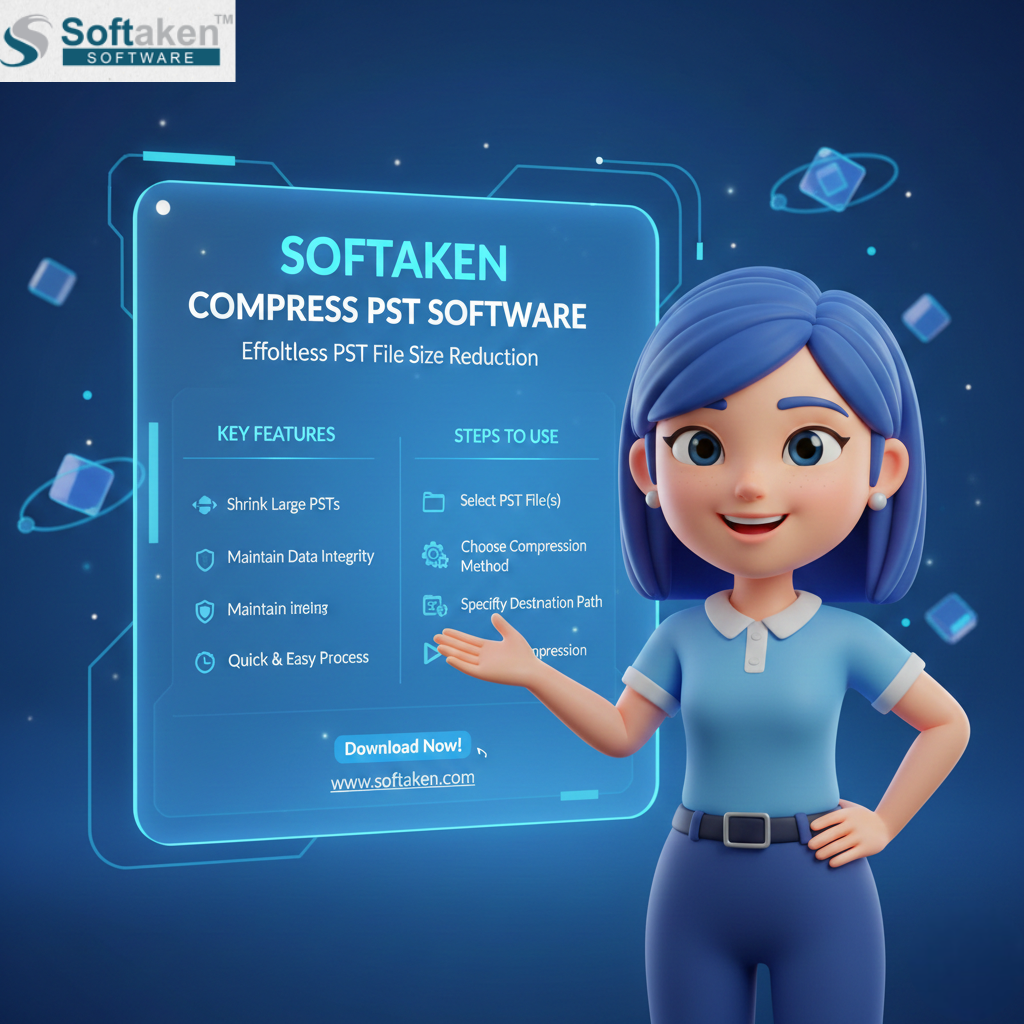
Softaken Compress PST Software is a professional tool that helps you safely compress large or oversized PST files. Its main purpose is to reduce the size of Outlook data without damaging emails, attachments, contacts, calendars, or other items.
Key Features of Compress PST Software
1. Safely Reduce PST File Size
The tool scans all contents of a PST file & reduces its size. This process is completely safe, with no email or file loss.
2. Selection for keeping Attachments to a Separate File
The best option for reducing your PST file is to either remove the attachments or save them in another folder. The tool automatically performs this.
3. Batch Compression Support
Users can compress multiple PST files at once, a great time-saving feature.
4. Support for All Outlook Versions
This tool supports all versions from Outlook 2003 to Outlook 2016 and 2021.
5. Simple & User-Friendly Interface
A PST file can be easily reduced by anyone, even those no technological expertise.
6. 100% clean, secure, and virus-free tool
Softaken software is secure and professional-grade, providing corporate-level data protection.
How to use Compress PST Software?
Step 1: Download & install the software.

Step 2: Launch the software and click "Add PST File/Folder."

Step 3: Add the PST files to compress.

Step 4: Select the compression mode: Remove, Extract, or Compress attachments.

Step 5: Set the output folder location.

Step 6: Click "Start Compression."
In a few minutes, your PST file will be lightweight & perfectly optimized.
This software is ideal for all individuals, institutions and companies who use Outlook daily and want to keep their data safe.
At last,
A large PST file is a common problem for Outlook users, causing performance issues. You can choose two methods to compress a PST file on Windows 10/11:
Manual Method (Compact Now), suitable for small sizes.
Third-Party PST Compressor Tool, a better and safer way to compress large and multiple PST files.
You have to regularly compress your PST file if you want your Outlook data file to be perpetually light and error-free.

